Hello,
Embarking on the Magical Journey 🚀✨
Step 1: Dream Up Your Disney Theme 🏰🐭
Imagine the Scene: Picture your Frenchie in a Disney setting. A snowy scene from ‘Frozen’ or maybe a festive ‘Mickey Mouse’ backdrop? Let your imagination run wild!
Step 2: Accessing Bing AI Image Creator 🌐💻
Finding the Tool: Head over to Bing AI Image Creator. It’s free and user-friendly – perfect for our festive project.

Step 3: Crafting the Perfect Prompt 📝✏️
Prompt Crafting: This is where the magic happens. Your prompt should be detailed. These are a few examples I came up with that you can reuse, but feel free to let your imagination go wild!
- Prompt 1: “A
French Bulldog dressed as Mickey Mouse in front of Sleeping Beauty’s Castle, with Christmas decorations, in a vibrant, animated style.” - Prompt 2: “Illustration of a Cream
French Bulldog wearing an Elsa costume from ‘Frozen’, surrounded by snowflakes and a snow-covered landscape, in a Disney-like art style. - Prompt 3: “A whimsical drawing of a Fawn
French Bulldog with reindeer antlers sitting beside Olaf from ‘Frozen’, in a snowy setting, in the style of a classic Disney animation. - Prompt 4: “A festive scene featuring a Blue
French Bulldog with a red nose, imitating Rudolph, in a ‘Nightmare Before Christmas’ setting, drawn in a Disney-inspired style. - Prompt 5: “A
French Bulldog wearing a Santa hat sitting in front of Cinderella’s Castle with snow falling, in a whimsical, colorful style, reminiscent of Disney animation.
Step 4: Let AI Do Its Magic 🧞♂️🎨
Generating the Image: Enter your prompt, click Create, and watch as Bing AI brings your vision to life! It might feel like waving a magic wand!
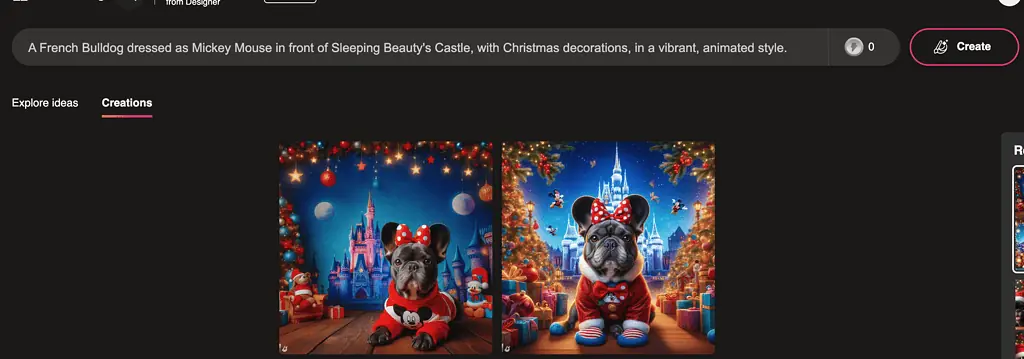
Enter your prompt and press create
If you are happy with your creation, download your favorite image to your computer by clicking on it. You should see this screen below.

Step 5: Personalize Your French Bulldog Christmas Card in Canva 💌💬
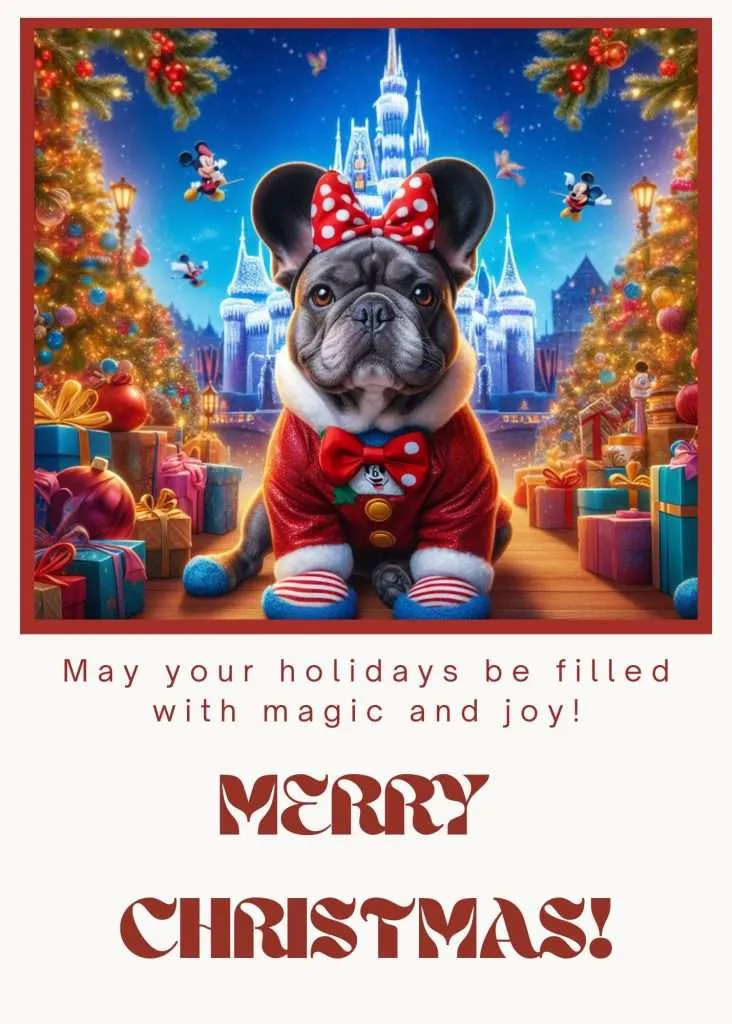
Adding a Personal Touch: Now it’s time to personalize your card and add the Christmas message of your choice. For this, we are going to use a tool called Canva. To make it easier for you, I have created a template that you can access here.
*Please note that if you don’t have an account already, it will ask you to create it, but don’t worry it’s completely free!
Once you have opened my template, you should click File then “Make a copy.”

Then you can upload your new image by clicking on Uploads, Upload files, and selecting the picture that should have been downloaded from Bing earlier.

Next step is to add your image to the christmat card. The easiest way is to select it and drag & drop it to the exisitng image.

Modify the card
Finally, you can add a heartfelt Christmas message. “May your holidays be filled with magic and joy!” captures the Disney spirit.

Optionally, you should adjust the colors of your cards to your image. For this, you can select the item you want to change, like the frame. Then click on the color square at the top, and you will see the panel below the picture where you can choose one of the photo colors. I picked the same red in my case.

Step 6: Share the Magic 🌟🌍
Spreading Joy: Download your creation and print it or share it digitally. Your unique, Disney-themed Frenchie card is sure to be a hit!

Tips for Spellbinding Prompts:
- Be Descriptive: The more detailed your prompt, the better the AI can capture your vision.
- Incorporate Disney Elements: Mention specific Disney characters, scenes, or themes to align with the Disney aesthetic.
- Experiment and Iterate: Don’t be afraid to try different prompts. Each iteration can bring you closer to the perfect card.
Why This Magical Combo? 🤔
- Endless Creativity: Bing AI’s versatility meets Canva’s user-friendly design tools for a truly unique card.
- Personal and Heartfelt: Your card will be a blend of your love for Disney, Christmas, and your beloved Frenchie.
- Accessible and Fun: Both Bing AI and Canva are easy and enjoyable to use, even for beginners.
Final Thoughts
Transforming your